To secure your browser against malicious redirects and hidden pop-under scripts, you must manually enable advanced privacy and annoyance filter lists within your extension dashboard. Learning how to configure uBlock Origin for safe video streaming ensures that your system blocks malicious background code before it can load a single rogue browser tab. Default factory setups are simply too weak to catch custom script injections deployed by major video directories.
Here is the thing: running a large media index costs serious money. Streaming portals cover these steep server bills by working with sketchy, non-traditional advertising networks. These networks do not use clean banner ads. Instead, they slap invisible, transparent overlays right across the entire video player interface.
You think you are clicking the volume slider or the play button. In reality, your very first tap executes a background script that forces a secondary window open to an unsafe site. Tightening down your extension parameters stops these hidden triggers cold.
Why do default ad blocker settings fail on streaming sites?
Most traditional extensions look for obvious clues in a website’s code, searching for terms like “ad-server” or “marketing_banner.” Once spotted, they hide that layout box.
Modern streaming portals completely bypass this lazy defense. They build their promotional tracking codes directly into the JavaScript files required to make the actual video stream run. If your extension tries to block the ad using stock settings, the video container itself breaks and displays a permanent spinning wheel.
Think about a standard video portal like NoodleMagazine or a free sports streaming link. They use complex scripts that monitor mouse coordinates. If your cursor moves toward the center of the video block, the script primes a temporary pop-under window. A default blocker sees this behavior as standard user interaction, leaving your computer completely unprotected against immediate malicious redirects.
How to configure uBlock Origin for safe video streaming: The step-by-step setup
Ready to fix this mess? You need to dig into the advanced user control grid to unlock the real power of this open-source tool. First, make sure you downloaded the authentic software created by Raymond Hill. Fake copycats with titles like “uBlock Plus” litter the extension store to steal user search data.
Once you have verified your app, click the maroon shield icon on your toolbar and tap the small gears graphic to open the main settings matrix.
Activating the hidden filter lists that actually matter
By default, the application turns off several massive filter databases to keep memory usage extremely low on ancient computers. For active media consumption, you must force these definitions live.
-
- Open the dashboard and click directly onto the Filter lists tab at the top of the menu.
- Find the Privacy sub-heading and click the small plus sign to expand the options.
- Check the empty boxes for both AdGuard URL Tracking Protection and Block Outsides.
- Scroll further down to the Annoyances section. This is where the magic happens.
- Check the boxes for AdGuard Annoyances, uBlock filters – Annoyances, and Fanboy’s Anti-Facebook List.
- Move back to the top of the screen, click the yellow Purge all caches button, and then click Update now.
Your browser will take roughly 15 seconds to download these new rule sheets. Once saved, these lists actively scan for hidden cookie popups, overlay screens, and auto-download commands, vaporizing them before they hit your desktop.
Writing custom rules to kill phantom click-jackers
Some specific directory portals use tracking setups that require a manual rule override. You can write these instructions directly into your extension.
Click into the My filters tab on your dashboard panel. Copy and paste these lines into the empty text workspace:
||noodlemagazine-com.com$popup,important
@@||noodlemagazine-com.com$media,domain=noodlemagazine-com.com
What does this code actually do? The first line acts as an iron curtain that blocks any automated window generation commands from that specific domain. The second line ensures that the actual raw media container stays unblocked so your video stream still plays smoothly. Hit Save changes at the top right to make these rules permanent.
How do you handle aggressive anti-adblock walls?
Certain web aggregators monitor your browser setup and will completely freeze the page with a massive warning banner if they detect an ad blocker. They demand you switch off your security shield before they let you watch anything.
Do not listen to them. Turning off your protection on these platforms is an immediate security risk. Instead, you can dismantle these warning walls using the built-in Element Picker Tool.
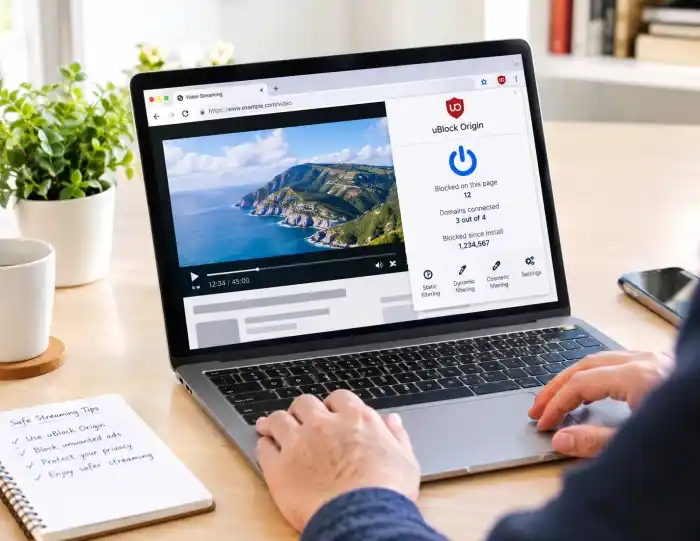
Tap the tiny eyedropper symbol inside the extension popup panel. Hover your mouse directly over the annoying blur screen overlay that is hiding the video frame. Click once to highlight it in red, then tap the “Create” button in the bottom right pop-up box. The extension instantly cuts that specific warning script completely out of the website’s active HTML code, allowing you to watch the stream without disabling a single security rule.
Why do streaming players break and how do you fix them?
Sometimes, an aggressive annoyance filter can accidentally catch an essential piece of a third-party host’s video initialization code. When this happens, the player frame might look totally dead or throw a generic network error.
Instead of turning your blocker completely off, use specific troubleshooting modes to find the culprit.
| Troubleshooting Method | Immediate Internal Effect | Best Scenario to Use |
|---|---|---|
| Purge Caches & Reload | Clears out stale or corrupted filter definitions | When ads suddenly start slipping through old pages |
| Toggle Cosmetic Filters | Hides empty layout boxes left behind by dead ads | When massive blank spaces clutter up the text layout |
| Element Zapper Mode | Temporarily drops a single broken visual element | To quickly drop a temporary pop-up on a video tab |
| Hard JavaScript Block | Forces all script executions on the tab to stop | When a sketchy link starts opening infinite spam tabs |
If a specific video container refuse to load, open the extension drop-down menu and look for the tiny lightning bolt symbol. This is Element Zapper Mode. Clicking it lets you instantly slice away custom overlay barriers on that specific tab without making any permanent changes to your core database filter files.
6. FAQ Section
Will learning how to configure uBlock Origin for safe video streaming slow down my browser?
No, it actually reduces loading lag significantly. By blocking heavy tracking code, mining scripts, and video ads before they even attempt to download, your browser processes less data, which saves your overall web bandwidth and lowers device CPU usage.
Why am I still seeing popup windows on some media search directories?
This usually means your local database filter definitions are outdated or a directory site just deployed a brand-new ad script format. Open your settings dashboard, click the “Filter lists” tab, hit “Purge all caches,” and select “Update now” to pull down the latest patches.
Can I run another ad blocker alongside uBlock Origin for double security?
Using two ad blockers simultaneously is a terrible strategy because their internal command rules will constantly crash into each other. This conflict causes massive web layout errors, increases your device RAM usage, and can easily break video playback frames entirely.
How do I safely whitelist a specific video platform that I trust completely?
Open up the extension popup window while you are visiting that specific web domain and click the massive blue power button symbol. This tells the system to skip all safety rules for that exact website while keeping your browser fully secured on all other open tabs.
7. Conclusion
The absolute best takeaway to remember is that manually turning on the hidden “Annoyances” and “Privacy” filter sets inside your dashboard options is mandatory to protect your machine during online media consumption. Leaving the software on default stock parameters leaves your system open to creative background window triggers, but spending three minutes to update your local settings guarantees a clean, secure streaming experience.